Assigning new claims & transfer claims

Written by Wilbur Admin
Updated at December 20th, 2020
ClaimLogik Plus requires a user to be assigned for each claim lodged within the platform, known in the system as the ‘Claim Owner’. The ‘Claim Owner’ once assigned is then responsible for the ongoing management of that claim. Depending on the ‘Auto Allocation’ rules that have been set up in the account, the claims can be automatically transferred to a team or user or, they can be manually assigned.
Auto Allocation
ClaimLogik Plus provides the ability to automatically allocate your claims to users or teams. You can allocate a claim based on one or more of the following criteria:
- Insurer
- Policy Number
- Policy Type
- Vehicle Types
- Loss Cause (primary loss cause only)
- Claim amount (from and to amount (for example from $0 to $5000)
- Fast Track (Yes or no, selected on the claim form)
- Severity Levels
- Intermediary ID
- Risk Address States
Note: This is based on the client-specific configuration and can be tailored based on each client’s requirements. If the auto allocation is not configured, then the claims that are lodged by a party other than an internal user will be unallocated and will require someone to manually assign them using one of the below methods.
Allocating Claim Owners
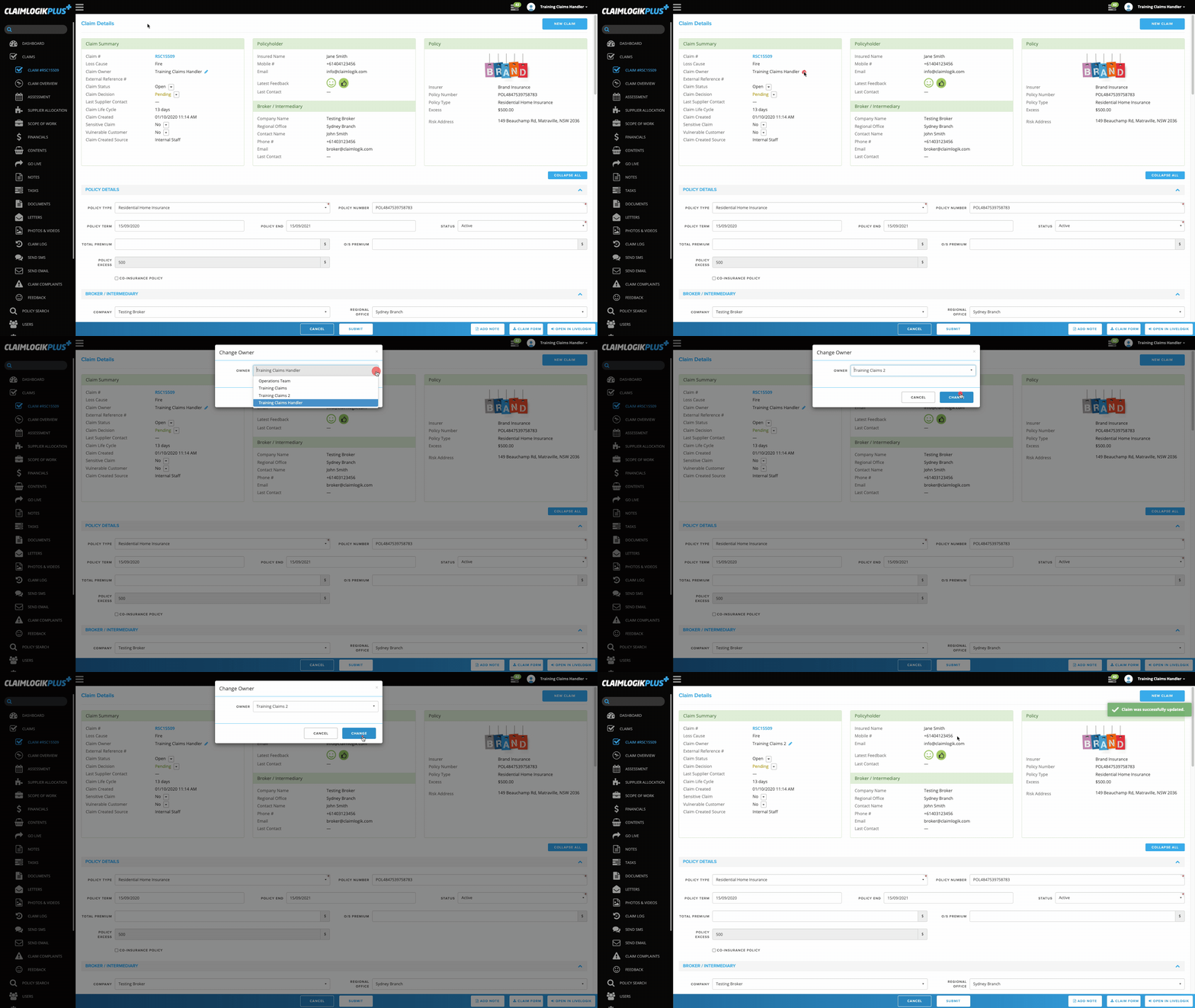
- Click ‘CLAIM (CLAIM NUMBER)’ from the left-hand side menu
-
Next to the ‘CLAIM OWNER’ under ‘CLAIM SUMMARY’ click the pencil icon

- Choose the desired new claim owner from the ‘OWNER’ drop-down menu
- Click the ‘CHANGE’ button
Note: A new task will be assigned to the new claim owner informing them of the change of ownership of that claim. They will also receive all the tasks which are assigned to the claim.
-
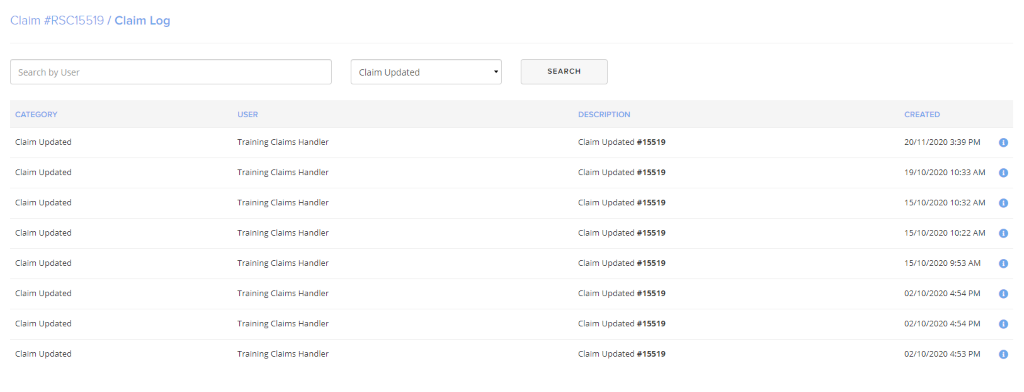
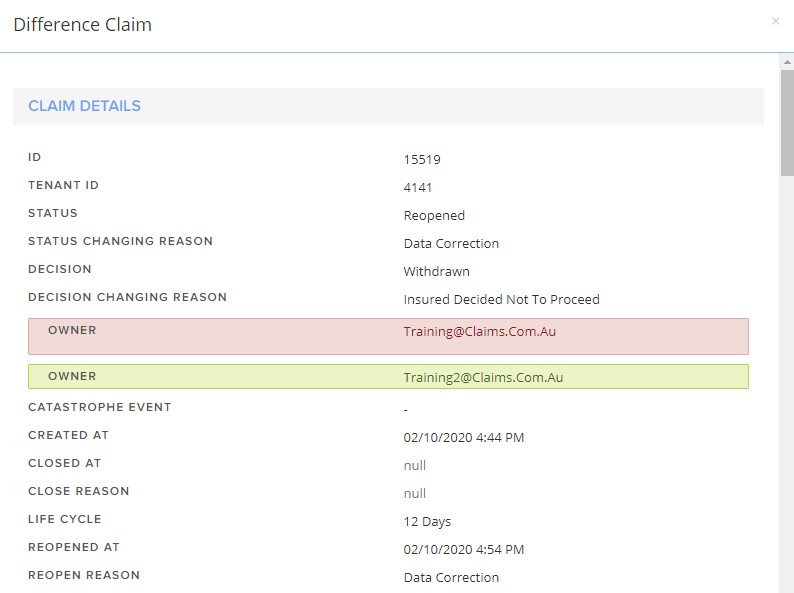
The Claim log will be updated to show the claim was transferred from the previous owner to the new owner and by who.

Bulk transfer of claims
The bulk transfer function is only available to the users that have been granted access to it.
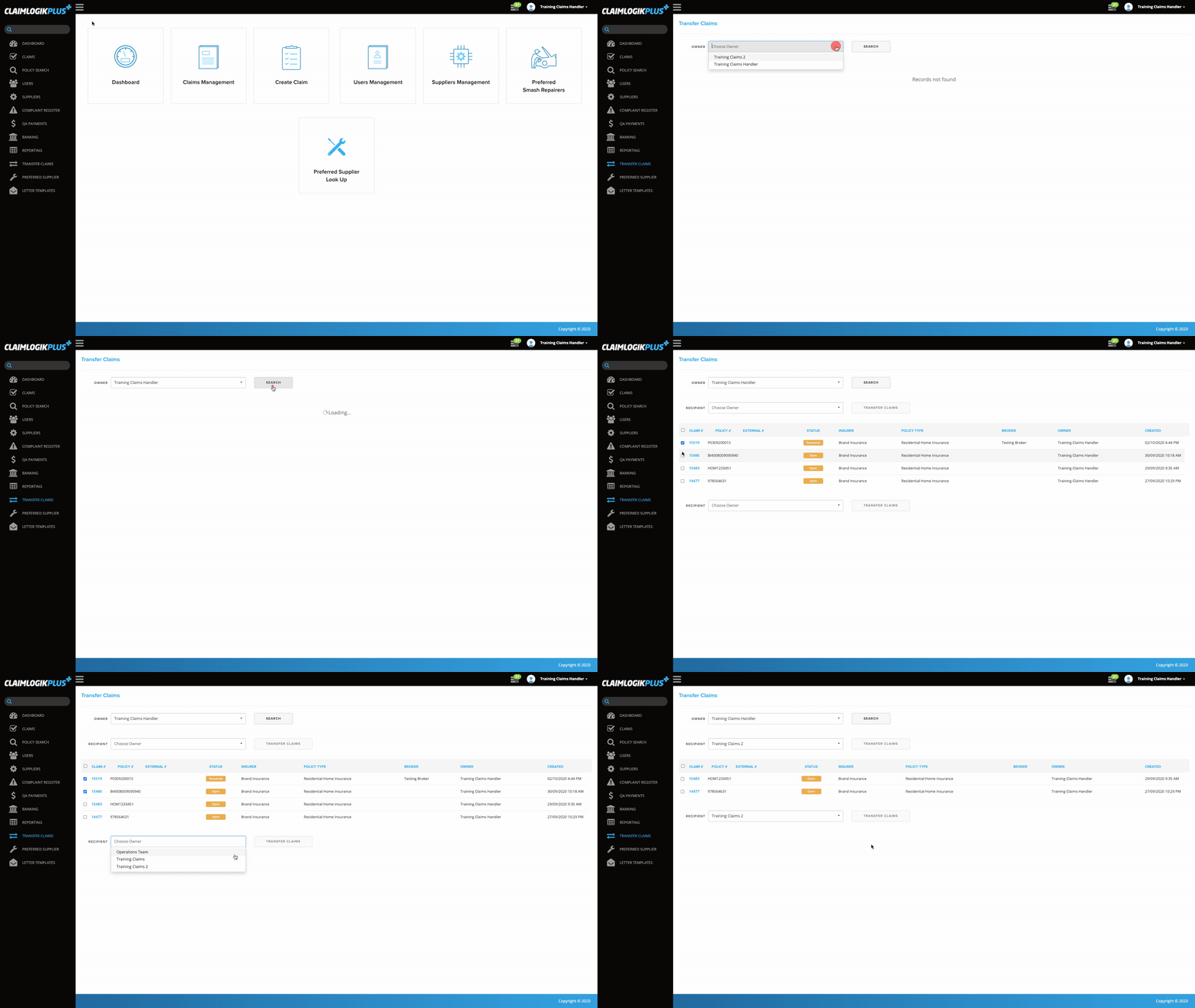
- Select ‘TRANSFER CLAIMS’ from the left-hand side menu
- Select the user from the ‘OWNER’ drop-down field
- Click the ‘SEARCH’ button
- Select the checkbox from the left-hand side of the table of the claims you want to transfer to the new owner
- Select the user from the ‘RECIPIENT’ drop-down field
- Click the ‘TRANSFER CLAIMS’ button
- Note: A new task will be assigned to the new claim owner informing them of the change of ownership of that claim. They will also receive all the tasks which are assigned to the claim owner.
The Claim log will be updated to show the claim was updated, upon clicking the ‘i’ icon you will see the details of the change including the claim owner being updated.